How to organize receipts and track expenses on your phone
Keep every receipt, see the shop, date and items at a glance, and get totals and a spreadsheet when you need them, on your Android phone. Free steps first, then Pro.
The problem
Receipts fade, get lost, and are hard to add up at the end of the month or the year. You want to keep them, see what you bought, and get a spreadsheet when you need one, without typing everything in and without sending your purchases to a service in the cloud.
In short: scan a receipt like any document. Kopi Scan suggests the type “Receipt”, and the free Receipt view shows the shop, address, date and items. With Kopi Scan Pro, an optional one-time upgrade, the amounts (subtotal, taxes, total, payments) appear too; Spending summary totals your receipts by subcategory; Export to Excel or CSV and Receipts by year give you files.
Free: keep and read your receipts
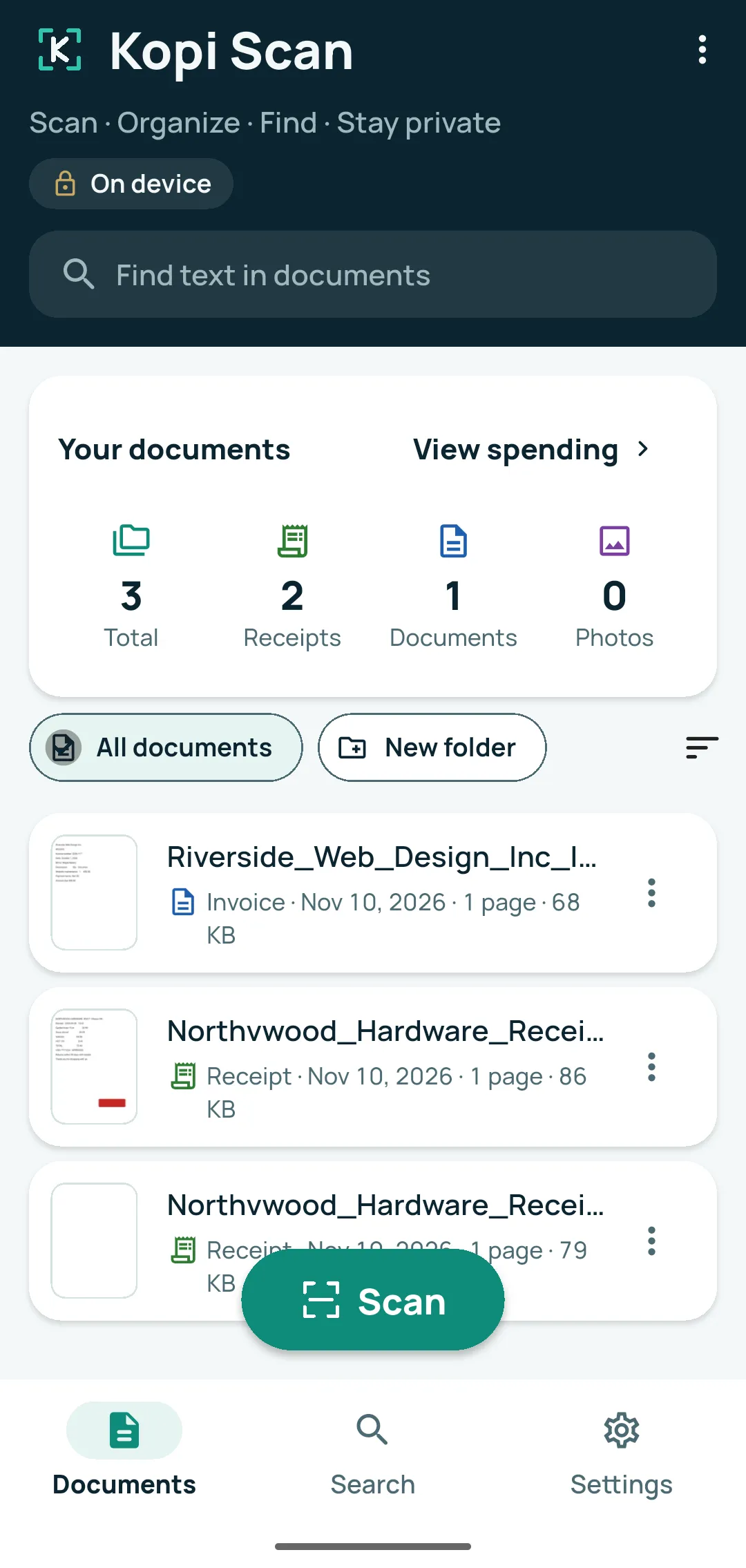
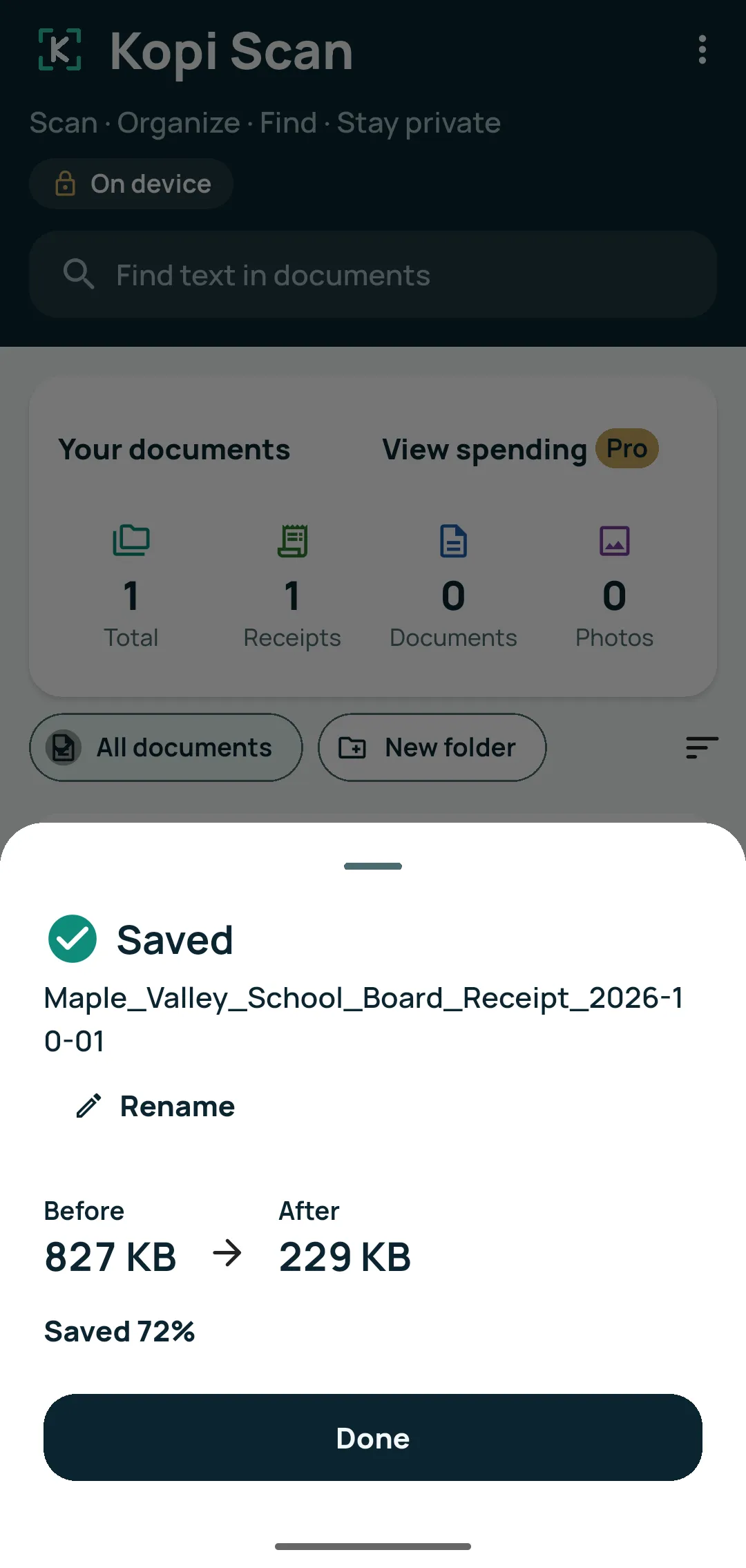
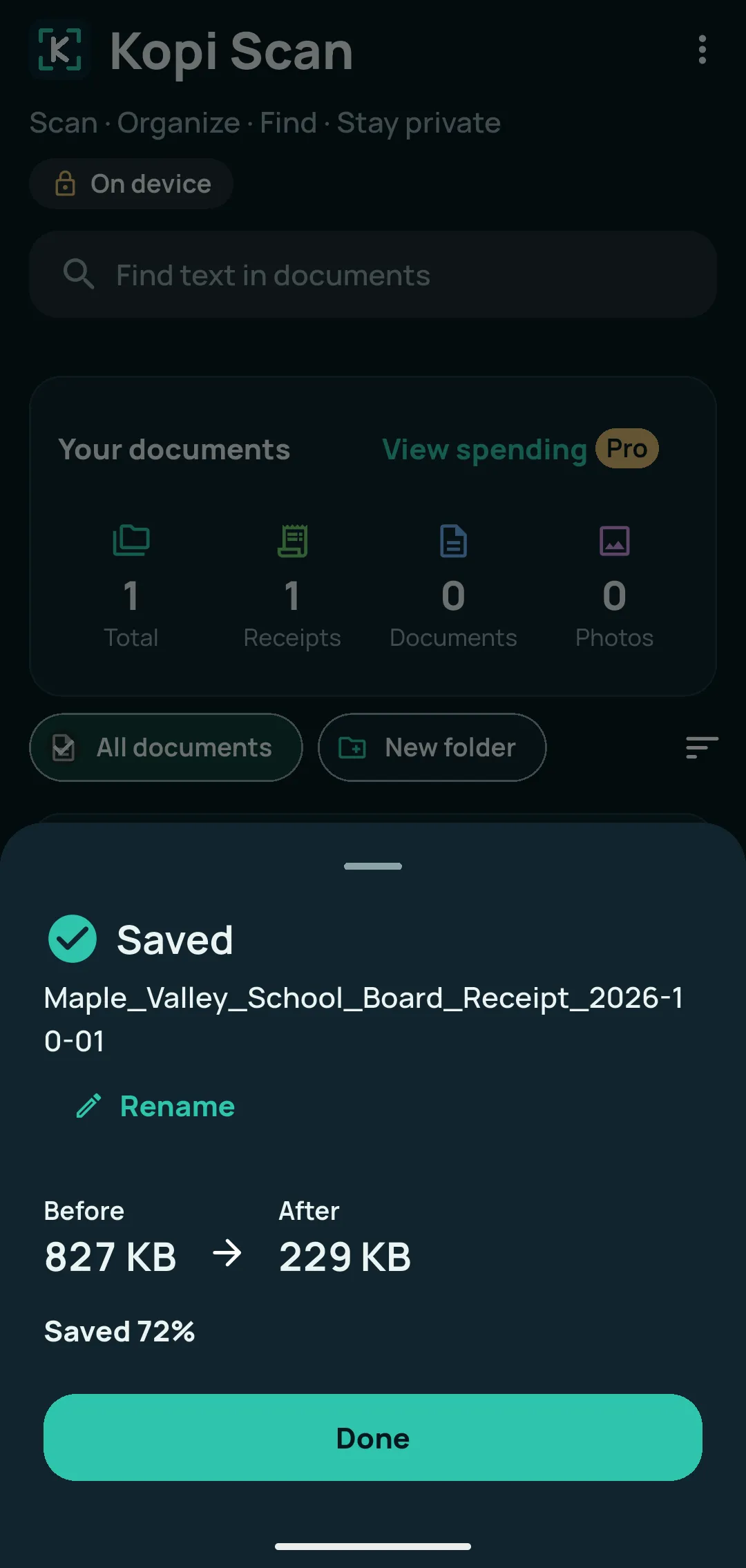
- Scan the receipt. Tap Scan, capture the receipt, then Save PDF. Kopi Scan suggests a name such as Northwood_Hardware_Receipt_2026-09-28 (shop, type, date) and the type Receipt. Tap Rename on the Saved sheet if you want another name. Suggestions need Sort documents automatically (Settings › Documents and scanning), which is on by default. Thermal receipts fade, so scan them soon after the purchase.
- Check the type, shop and date. Open the receipt. The list under the page pictures shows Category, Shop or company, Date, Folder and Tags; tap a row to change it.
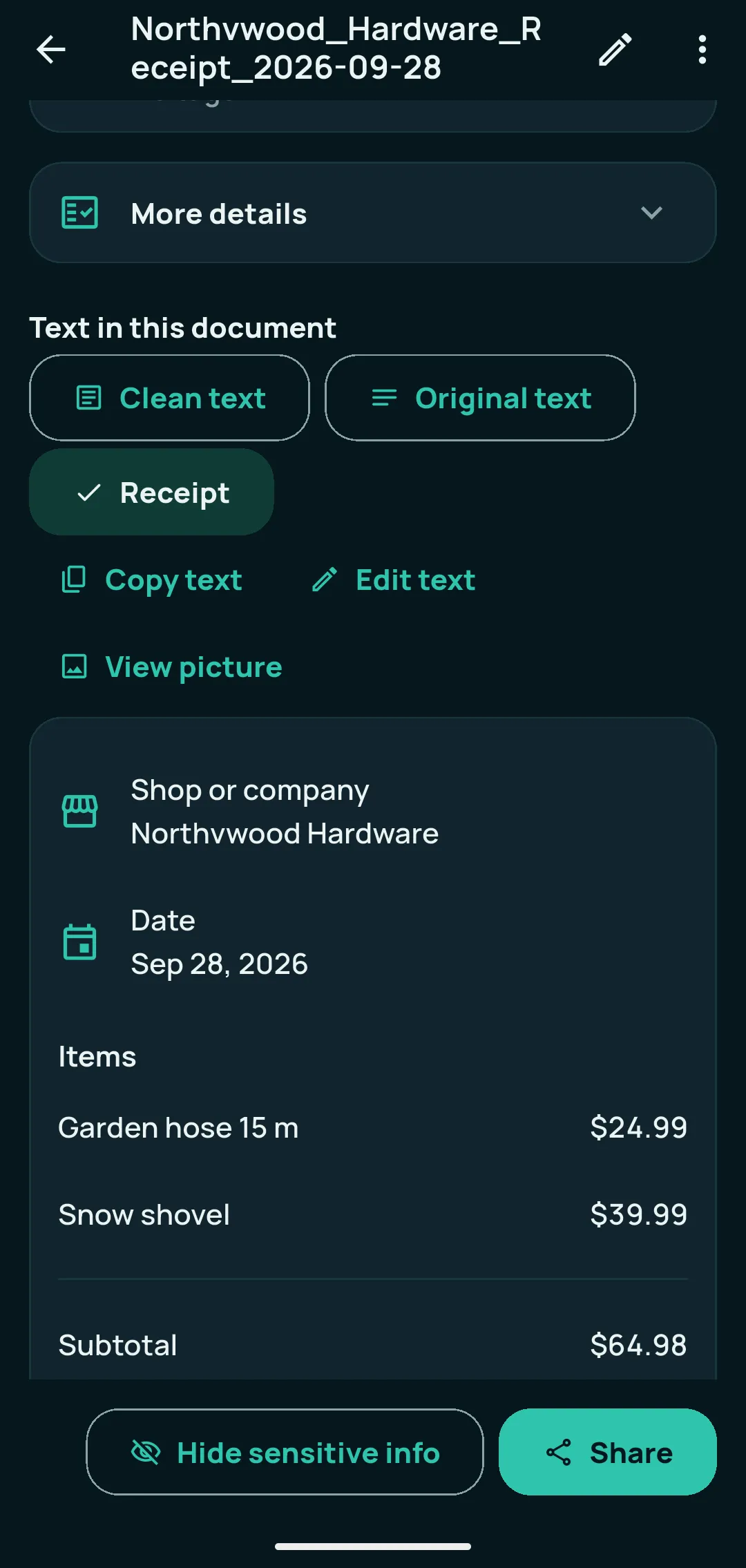
- See the receipt clearly. Under “Text in this document”, tap Receipt (next to Clean text and Original text; it shows when the category is Receipt). You see the shop, address, date and the Items with their prices (and Discounts). Tap a line to correct it (Edit this line).
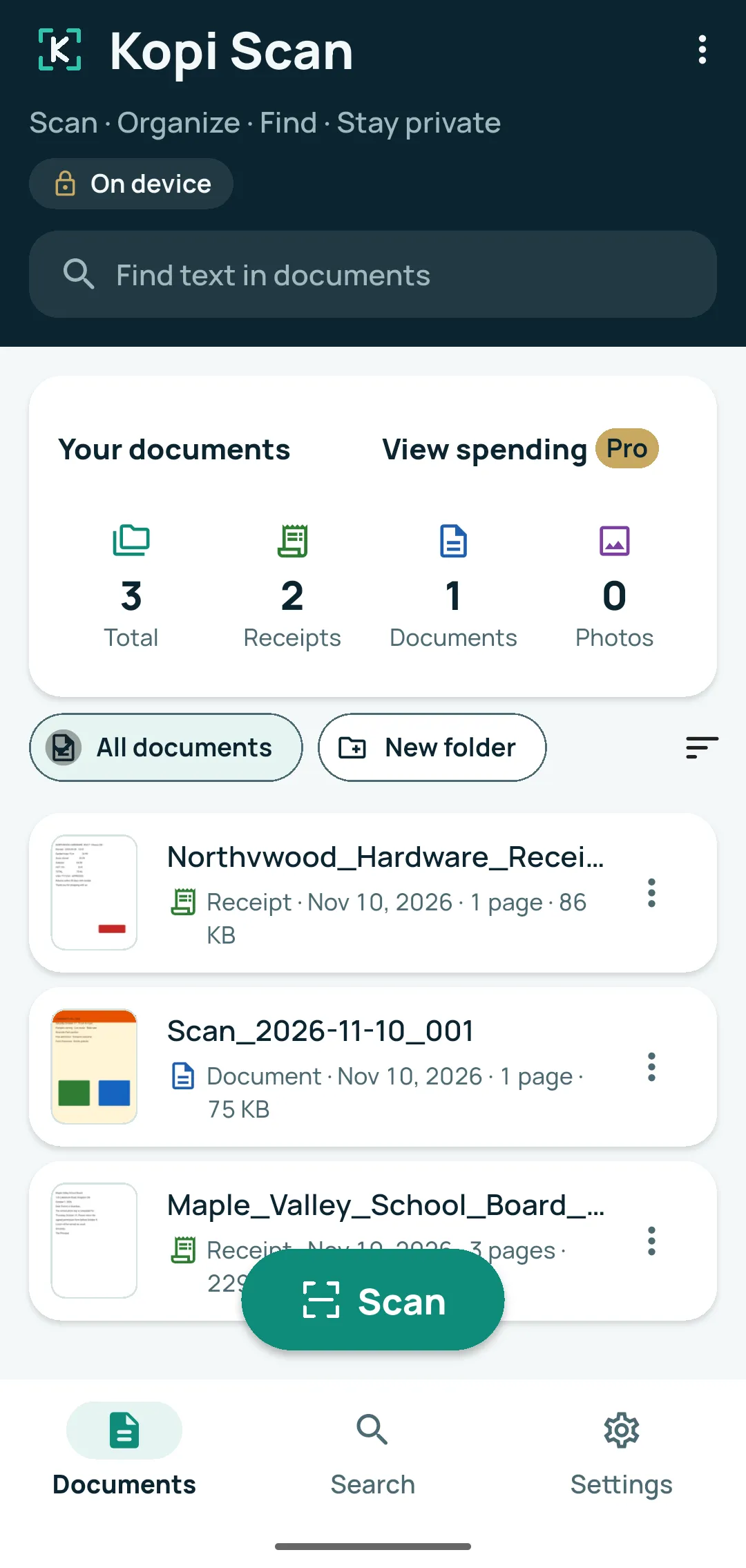
- Keep receipts tidy. On Documents, tap a document’s ⋮ › Move to folder, Category or Tags, or use the Folder, Category and Tags rows inside the document. Folders sit above the list (All documents, New folder).
- Sort and group. On Documents, tap the Sort button to the right of the folders: Newest first, Oldest first, Name A–Z, Name Z–A, and No groups, Group by type and month or Group by shop.
- Find any receipt later. Search for the shop, an item or an amount: the text of every receipt is read on your phone, so it is all searchable.
With Kopi Scan Pro: amounts, spreadsheets and reminders
The steps below describe Kopi Scan Pro, an optional one-time upgrade with no subscription.
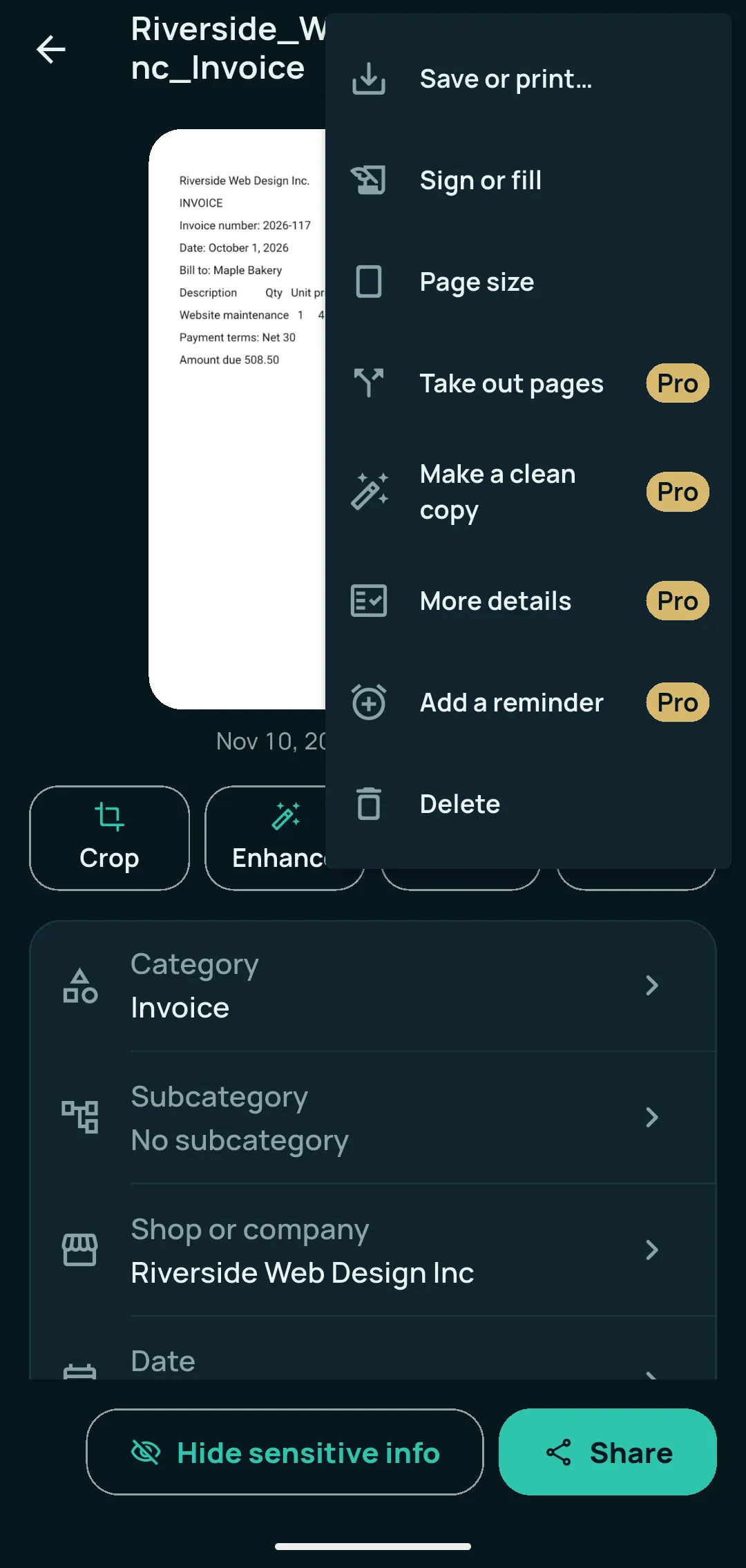
- Check the amounts. In the receipt, a Total row appears in the details list, and the Receipt view also shows Subtotal, taxes, Tip, Total, payments and change. For more, open More details (below the list, or the document’s ⋮ › More details): Subtotal, Tax, Due date, then Copy all or Save as spreadsheet (CSV). They are “Found automatically — check them before you rely on them.” Amounts that don’t add up are flagged, never corrected.
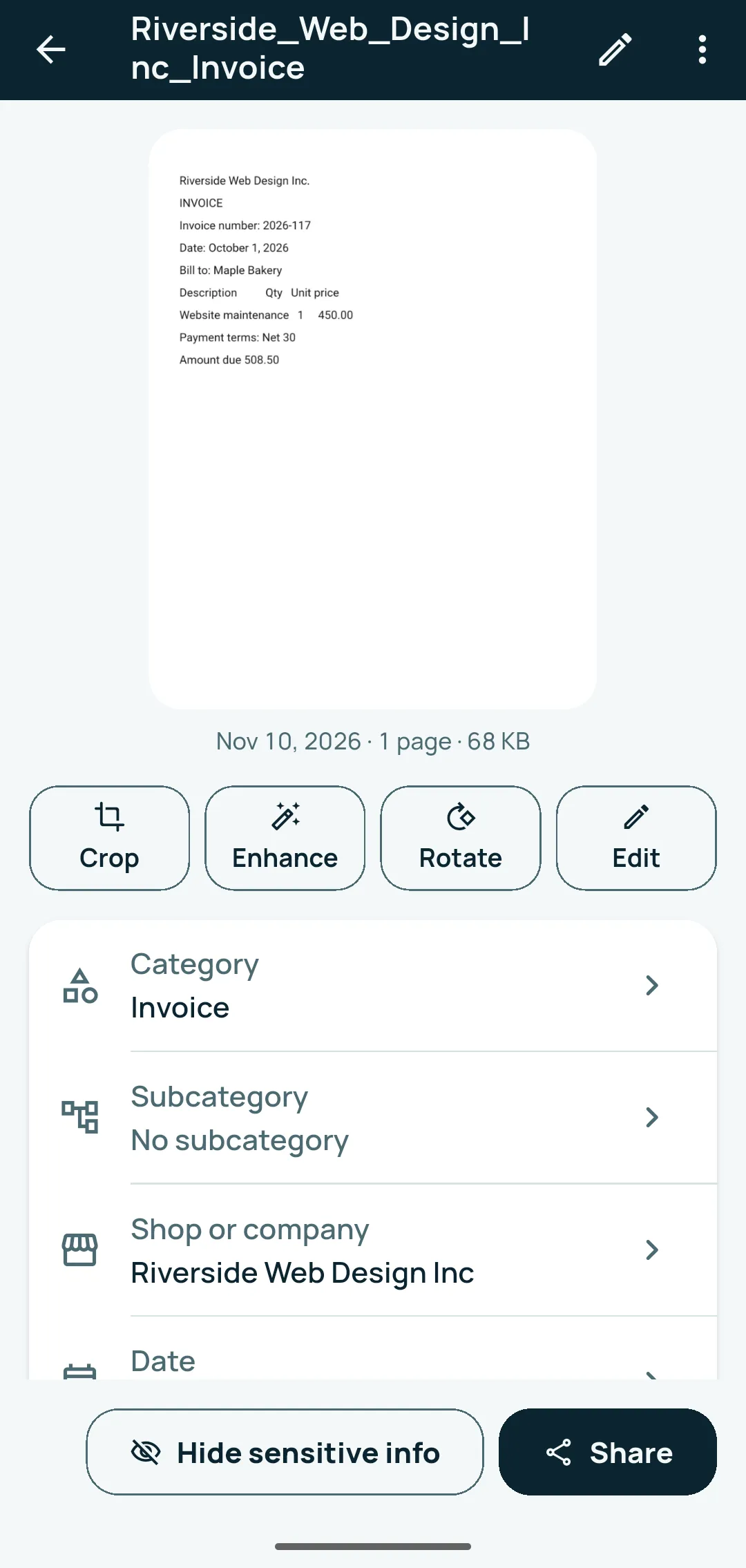
- Sort into a subcategory. On a receipt, invoice or bill, tap the Subcategory row (between Category and Shop or company). On Choose a subcategory, pick one (for example Groceries, Restaurants, Fuel expenses, Office supplies) or Add new subcategory, then tap Done & return. Next time, the same shop’s subcategory is suggested (“Suggested: the same as last time at this shop”). Manage them in Settings › Documents and scanning › Expense subcategories, or with Manage subcategories on the same screen.
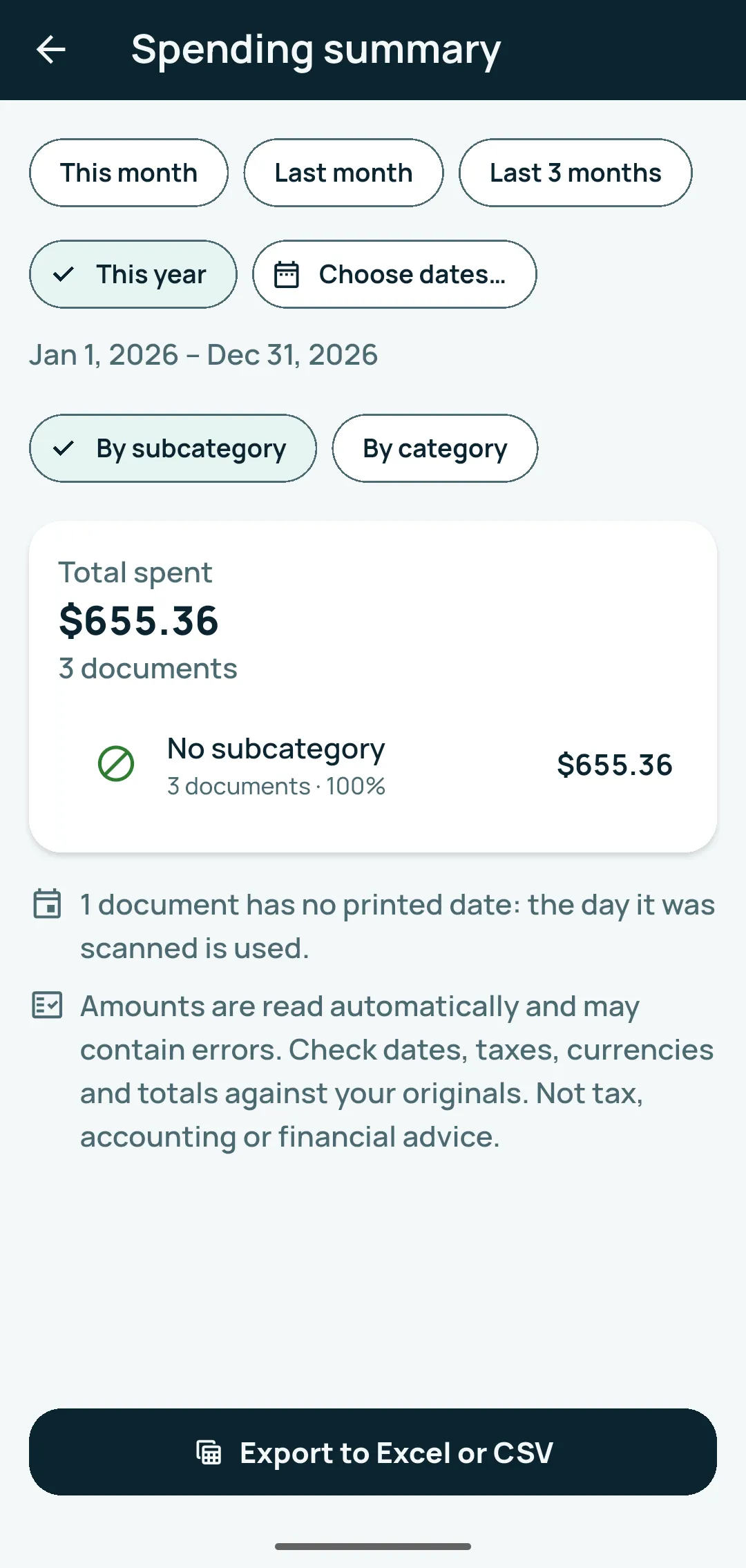
- See your spending. On Documents, tap View spending in the “Your documents” card, or the ⋮ at the top right › Spending summary. Choose This month, Last month, Last 3 months, This year or Choose dates…, and switch between By subcategory and By category. Amounts in different currencies are never added together; documents without an amount are listed apart (See the list).
- Export. On Spending summary, tap Export to Excel or CSV. On Export spending, under Tables to include keep or untick Each document, By subcategory, By category and Monthly summary. Under Spreadsheet choose Excel (.xlsx) or CSV (one file per table, in a .zip), then tap Save to this phone or Share.
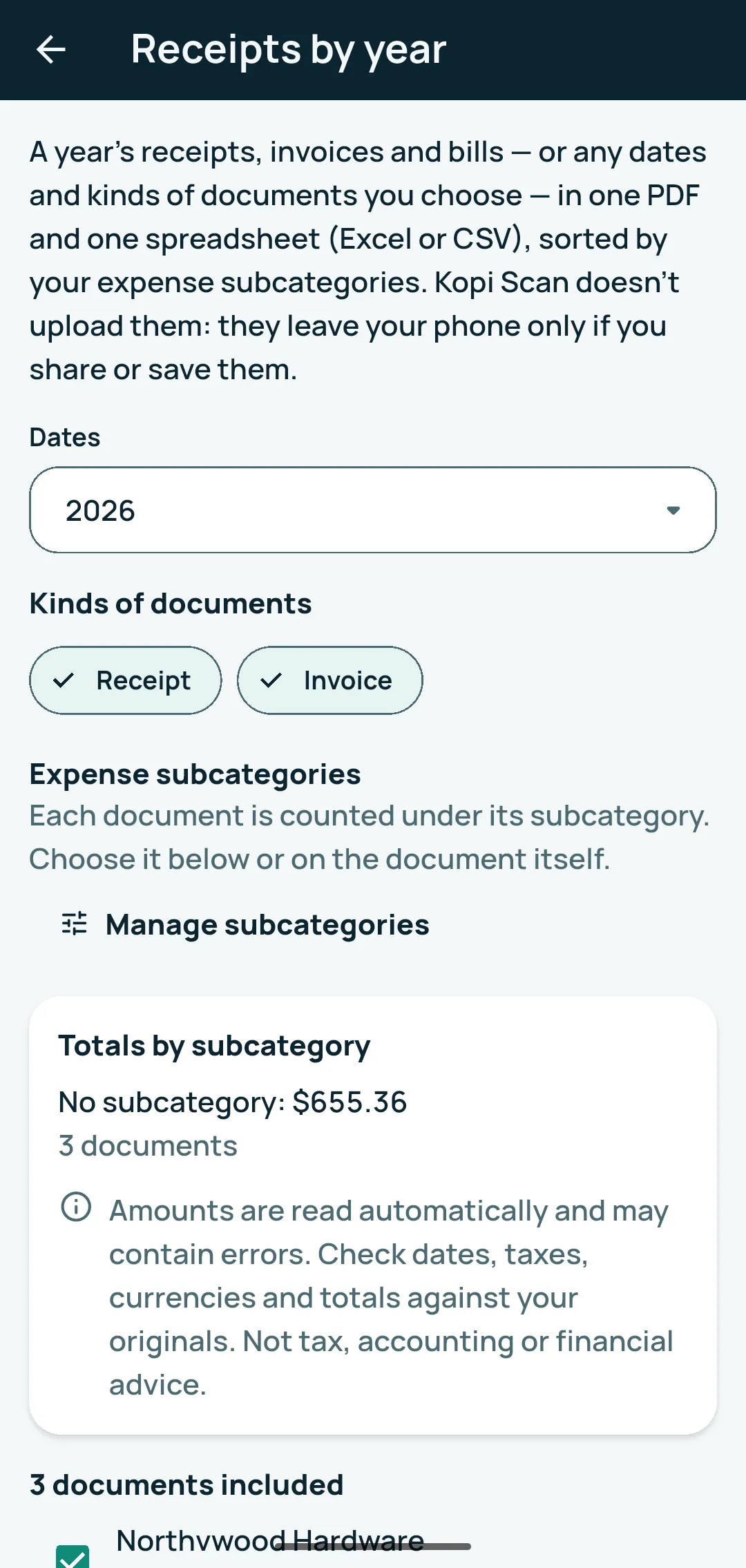
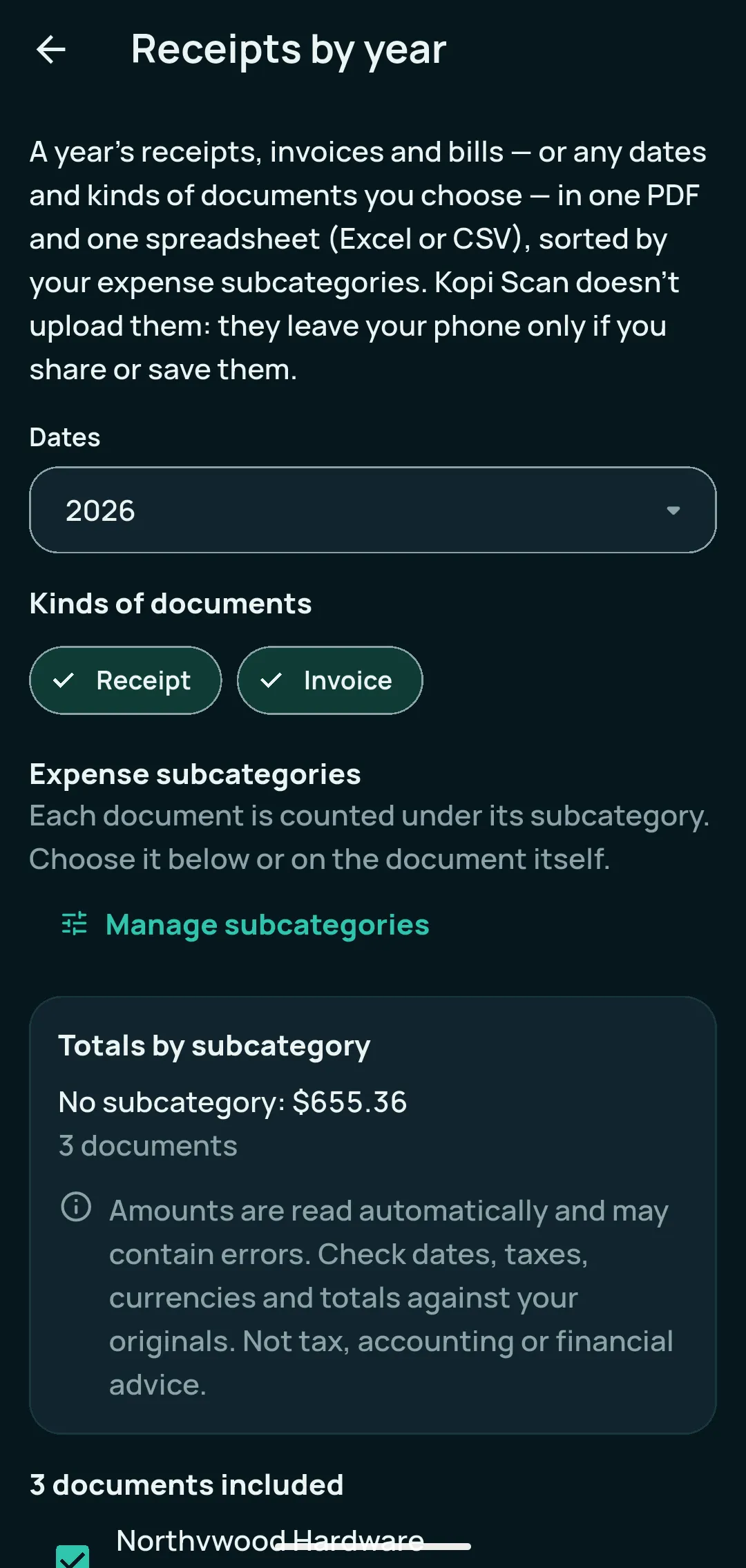
- Receipts by year. On Documents, tap the ⋮ at the top right › Receipts by year. Under Dates, pick a year or Choose dates…; choose the Kinds of documents; check each document’s subcategory; under Spreadsheet pick Excel (.xlsx) or CSV; then tap Share PDF and spreadsheet or Save to this phone. You get one PDF and one spreadsheet, sorted by your subcategories.
- Set a reminder (optional). In a receipt or bill, tap the document’s ⋮ › Add a reminder. Or, when Kopi Scan finds a date on it, the Reminders card shows it (“Found on this document”) with Set reminder. In the Reminder box choose What is it? (Return window ends, Warranty ends, Expires, Bill due), the date and Remind me how many days before?, then tap Save. At the first reminder Kopi Scan asks Allow notifications?; tap Allow (or Not now: the reminder still shows in the app). See them all in Settings › Reminders and Pro › Reminders.
Good to know
- Check every amount. Amounts are read by rules from the page text; values that don’t add up are flagged “Check this”, never corrected for you. You are responsible for how you use them. Kopi Scan is not tax, legal or financial advice.
- Shop, address, date and items are free for everyone. Only the amounts (subtotal, taxes, total, payments, due date) and the expense reports are part of Pro. Without Pro, the Subcategory and Total rows say “Add with Kopi Scan Pro”.
- One currency at a time. Spending totals never mix currencies.
- Reminders are a helper, not a guarantee. Suggested dates can be changed, reminders may be delayed or missed because of phone settings, and they stop notifying without Pro. Keep your own record of important deadlines.
- Scanning, reading and the spending tools work offline, and your documents stay on your phone unless you share or export them.
Related questions
Can I scan receipts?
Yes. Scan a receipt like any document: Kopi Scan suggests a name and the type “Receipt”, and the free Receipt view shows the shop, address, date and items with their prices. Check what was read, since reading a photo isn’t always perfect.
Which receipt details are free?
The shop, address, date and the list of items with their prices are free for everyone. The money details — subtotal, taxes, total, payments and due date — are part of Kopi Scan Pro, along with expense reporting.
Can I export expenses to Excel?
Yes, with Kopi Scan Pro. On Documents, tap View spending, choose the dates, then Export to Excel or CSV. Receipts by year also gives one PDF and one Excel or CSV file for any dates. Check every amount — you are responsible for how you use them.
What does Kopi Scan Pro include?
Pro adds receipt and invoice details (subtotal, taxes, total, payments, due date), expense subcategories, the Spending summary with Excel and CSV export, and Receipts by year. It also adds PDF tools — combine documents, take out pages, page numbers, password-protected PDFs, clean copy, tables to a spreadsheet, book page splitting — plus protected folders and reminders. In the app, “Compare Free and Pro” shows the full list.
Is there a subscription?
No. Kopi Scan Pro is an optional one-time upgrade: you pay once, and there is nothing to renew or cancel.
Is Kopi Scan free?
Yes. Core features are free: scanning, text recognition, search, sharing and folders, with no ads, no account, no watermark and no page limit. Kopi Scan Pro is an optional one-time upgrade that adds more tools.
Do reminders work without Kopi Scan Pro?
Reminders are part of Kopi Scan Pro. Existing reminders are kept but don’t notify without Pro. A reminder is a helper, not a guarantee: keep your own record of important deadlines.
Related
How to scan documents into searchable PDFs on your phone
Turn letters, forms and statements into clear PDFs you can find by any word inside them, without uploading anything. Free, step by step, on Android.
How to scan documents privately, without cloud uploads
Scan IDs, medical forms and statements offline, keep them encrypted on your phone, hide sensitive details before sharing, and keep a backup only you can open.
Try it on your own documents
Core features are free: no page limit, no watermark, no account.
For Android 7.0 or newer.