How to scan documents privately, without cloud uploads
Scan IDs, medical forms and statements offline, keep them encrypted on your phone, hide sensitive details before sharing, and keep a backup only you can open.
The problem
IDs, tax slips, medical forms and bank statements are sensitive. Many scanner apps upload them to a server or require an account. You want to scan, keep and share these papers while staying in control of where copies go.
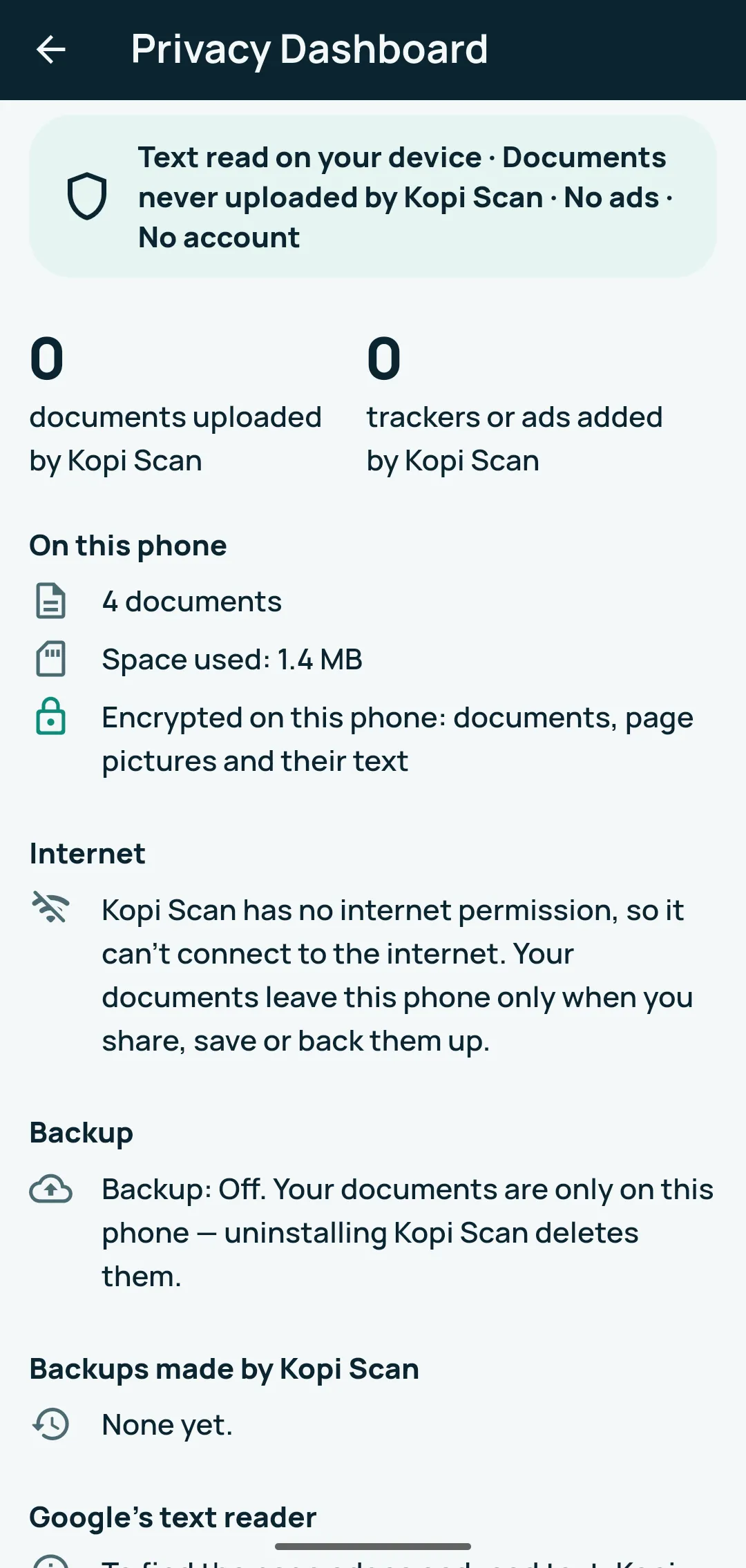
In short: Kopi Scan never uploads your documents. On Android it has no internet permission, your documents are stored encrypted on the phone, and a copy leaves only when you share, save, print or back it up to a folder you chose.
How Kopi Scan keeps documents on your phone
- No internet permission (Android). Every release build is checked for this automatically, so the app itself has no way to send your documents anywhere.
- Encrypted storage. Your documents, page pictures and their text are stored encrypted on your device (AES-256-GCM files and an encrypted database), with the key in the Android Keystore.
- Offline core. Core scanning, text reading, search and saving work offline, even in Airplane Mode; when you’re offline, the app shows “Offline — scanning and your documents still work”.
- No account, no ads. Kopi Scan adds no analytics of its own, and no ads or tracking tools. On Android, Google’s ML Kit (part of Google Play services) may send Google usage statistics about its tools, with an identifier for the installation; your pictures and text are not sent to Google.
Step by step
- Scan, even in Airplane Mode. Turn on Airplane Mode if you like, tap Scan and then Save PDF. Scanning, text reading and saving work offline. (Google’s scanner module, if your phone uses it, may need one download while online the first time; until then Kopi Scan’s own camera is used.)
- Lock Kopi Scan. In Settings › Lock and privacy, turn on Lock Kopi Scan (fingerprint, face or phone PIN). Then choose Lock after: Immediately, 1 minute away or 5 minutes away. Turn on Block screenshots if you want. The app is also hidden in recent apps while the lock is on.
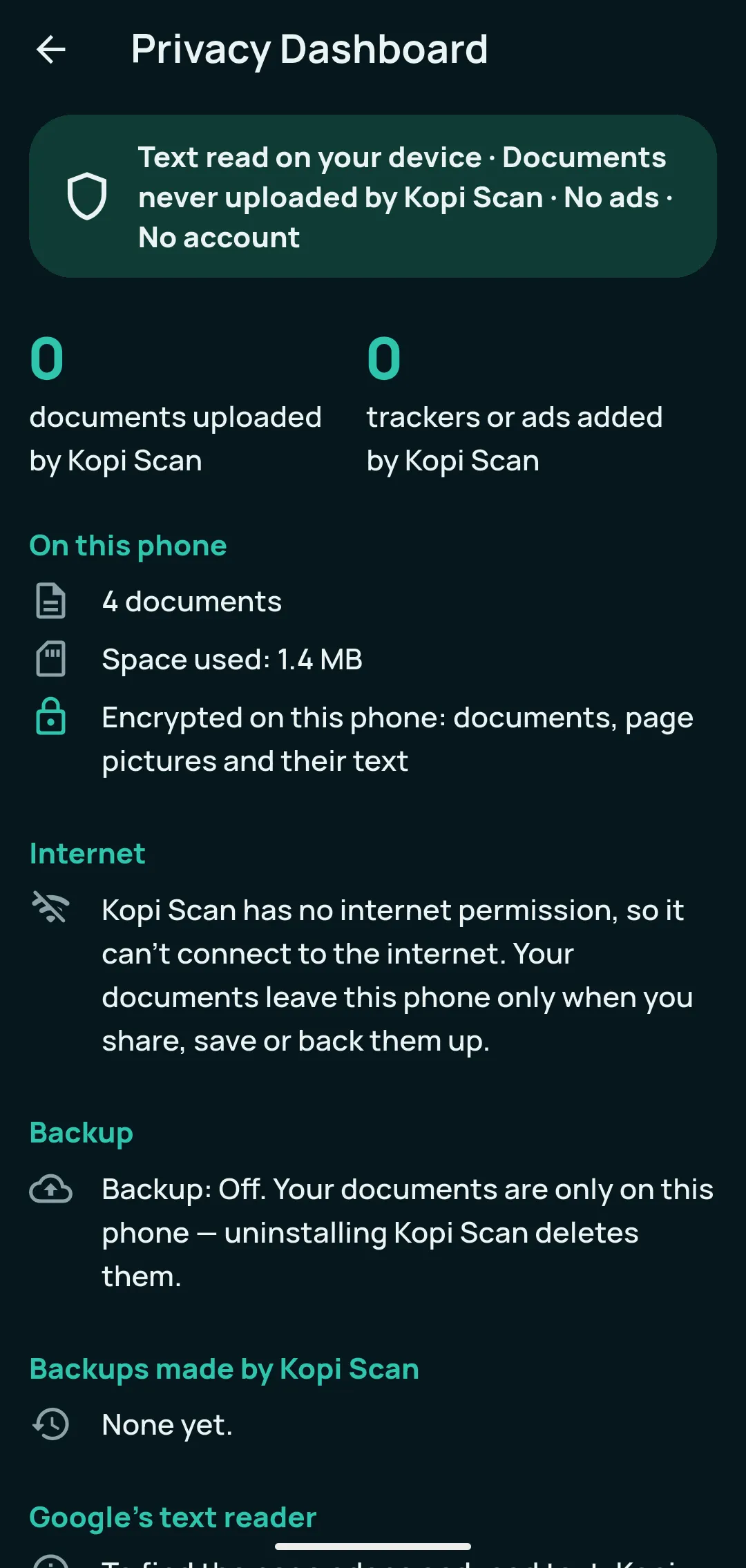
- Check what is stored. Open Settings › Lock and privacy › Privacy Dashboard (the first row), or tap the privacy banner at the top of Settings. It shows the documents on this phone, the space used, “0 documents uploaded by Kopi Scan” and “0 trackers or ads added by Kopi Scan”, your backup status, and the note about Google’s text reader.
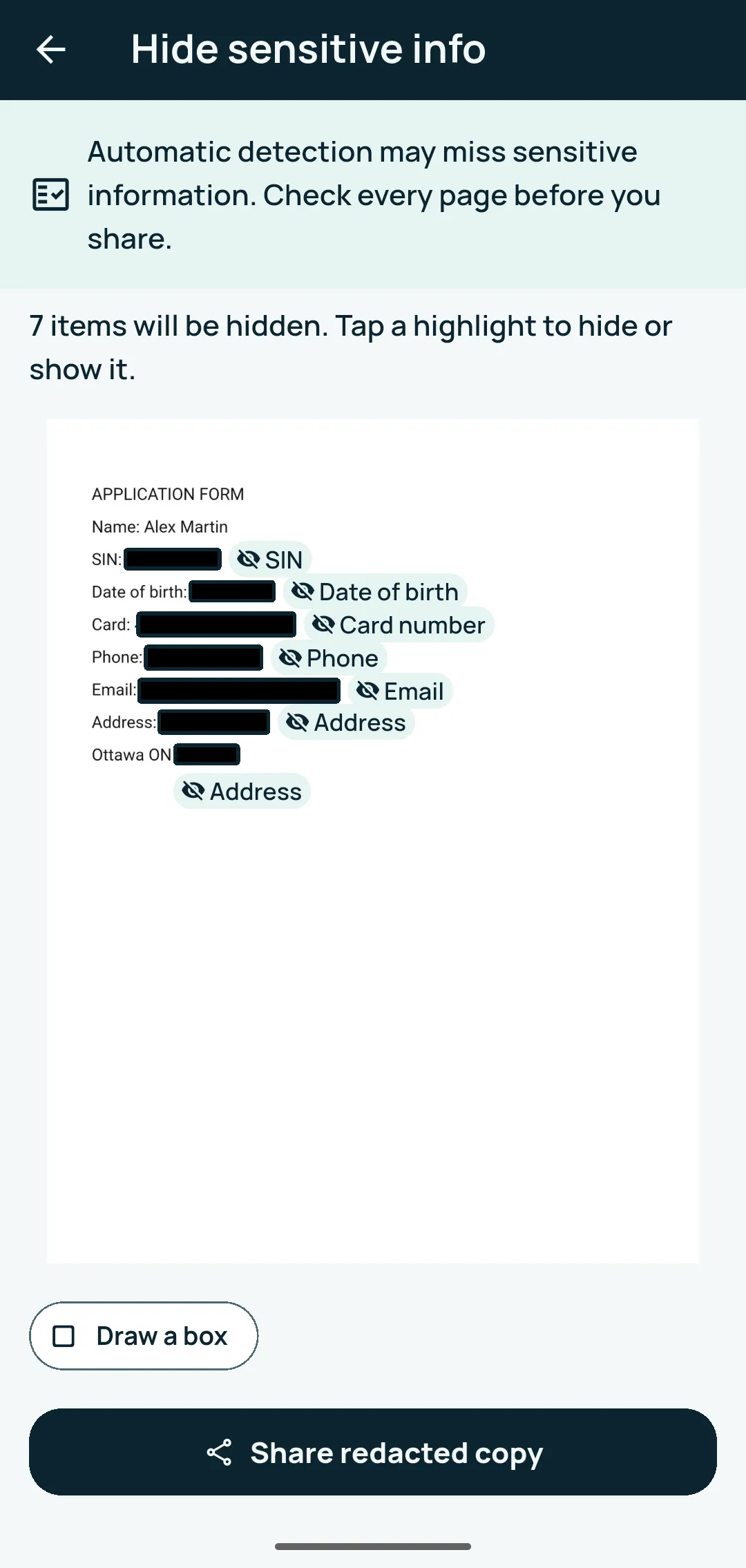
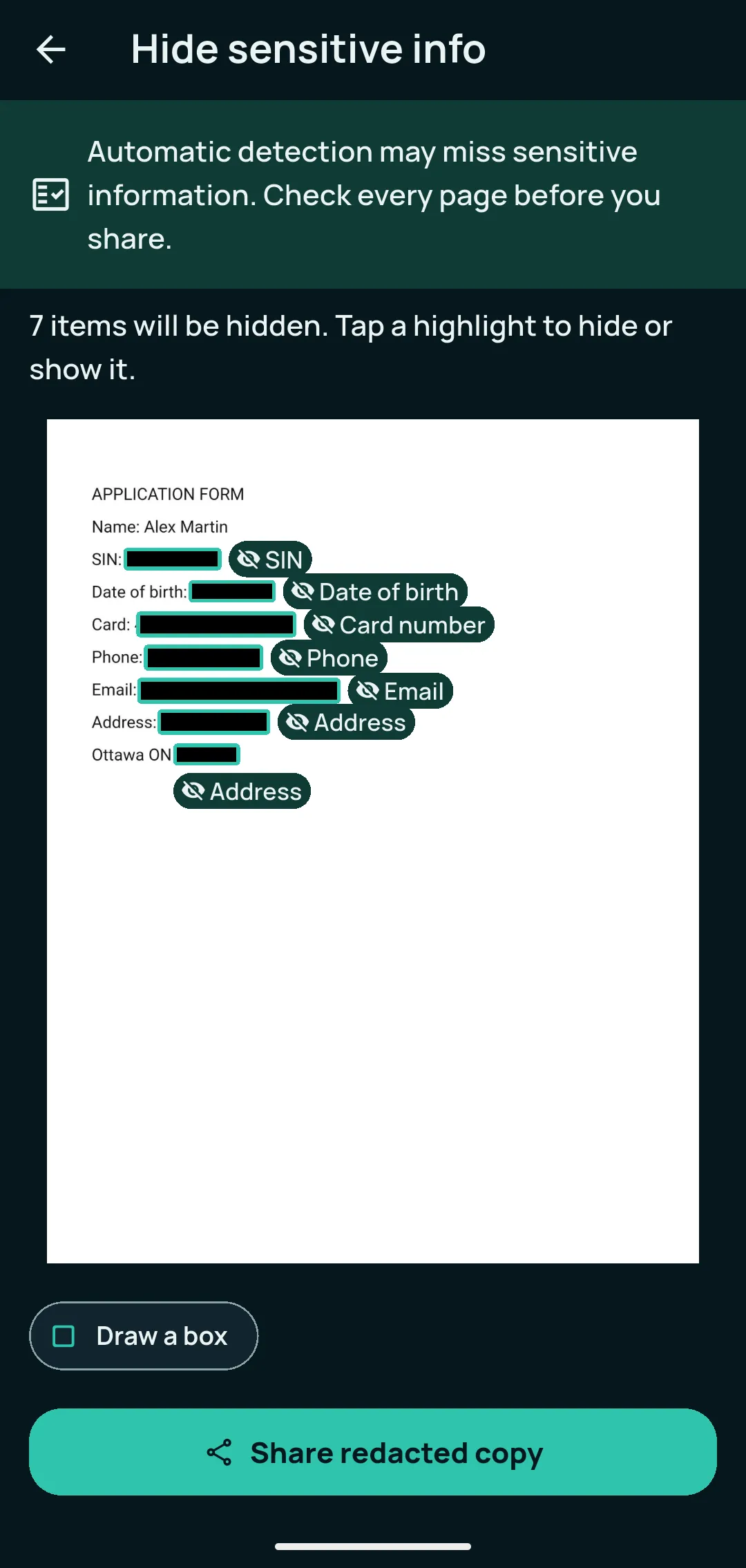
- Hide sensitive info before you share. Open the document and tap Hide sensitive info at the bottom, next to Share. Read the warning, tap a highlight to hide or show it, use Draw a box for anything that was missed, check every page (Previous page / Next page), then tap Share redacted copy. Your saved document doesn’t change: what you hide is blacked out in the page picture and removed from the PDF’s text, in a new copy.
- Share only what you choose. Use Share or the document’s ⋮ › Save or print…. A copy leaves the phone only when you do this; after that, the receiving app decides what happens to it. Saved pages carry no photo location or camera data.
- Keep an encrypted backup. In Settings › Backup, tap Back up your documents. On Turn on backup, enter a Backup password (at least 8 characters) and Type it again, then Next. On Your Recovery Key, tap Copy key or Save as a file, keep it somewhere away from the phone, tick “I saved my Recovery Key somewhere safe”, then Next. On Choose where to keep backups, tap Choose a folder (a folder on the phone, or one that belongs to a cloud app), then Turn on and back up now. Back in Settings › Backup, under Automatic backup choose Weekly, while charging or Daily, while charging if you like.
- Delete everything if you need to. In the Privacy Dashboard, tap Delete all my data. Read the list (you can tap Make a backup first), type DELETE where it says “To confirm, type DELETE”, then tap Delete everything. This can’t be undone. Backups in your backup folder and copies you shared or saved elsewhere must be deleted where they are.
With Kopi Scan Pro
Kopi Scan Pro is an optional one-time upgrade. It adds two tools for sensitive documents:
- Protected folders. Put sensitive documents in a folder, open the folder on Documents, then tap the ⋮ at the top right › Protect this folder. Its documents then open only with your fingerprint, face or phone PIN; while locked, they are listed by name and date only. The same ⋮ › Lock now closes them again. It is a lock in front of the documents, not separate encryption, and Stop protecting stays free.
- Share PDF with a password. Open the document, its ⋮ › Save or print… › Share PDF with a password. For several documents, long-press to select them, then ⋮ › Share as one locked PDF. The PDF opens only with your password (AES-256, the PDF standard). Use at least 6 characters and send the password another way, not in the same message.
Good to know
- Hide sensitive info is a helper, not a guarantee. Automatic detection can miss things. Check every page before you share.
- App lock and protected folders are gates, not keys. They need a screen lock on your phone (“Set a screen lock on your phone first”); if you remove the screen lock, Kopi Scan still lets you in. They are not separate encryption.
- Your backup is only as strong as its password. Each backup is encrypted with your password: only your password or Recovery Key opens it. Keep both safe, since no one can recover them for you, not even VMSTA. If the backup folder belongs to a cloud app, that app uploads the encrypted file, not Kopi Scan.
- Delete all my data reaches this phone only. Shared copies, saved files, backups in your backup folder, a saved Recovery Key and store purchase history are outside the app. Uninstalling also deletes the documents on the phone, so keep a backup first if you need them.
- Scope of the privacy claims. “Kopi Scan never uploads your documents” is about the app’s own behaviour. Your own shares and backups, Google Play services statistics and store purchase checks do leave the phone, which is why the claim is scoped to the app’s own behaviour.
Related questions
Are documents uploaded to the cloud?
Kopi Scan never uploads your documents. On Android, Kopi Scan has no internet permission. Your documents stay on your device unless you choose to share, export or back them up — and if you back up to a cloud folder, that cloud app uploads the encrypted file, not Kopi Scan.
Does it work offline?
Core scanning, text reading, search and saving work offline, even in Airplane Mode; when you’re offline, the app shows “Offline — scanning and your documents still work”. Buying Pro and Google’s scanner module need a connection the first time.
Are my documents encrypted?
Yes. Your documents, page pictures and their text are stored encrypted on your device (AES-256-GCM files, encrypted database), with the key in the Android Keystore. Backups are encrypted too.
Can I lock the app?
Yes, for free. Lock the app with your fingerprint, face or phone PIN in Settings › Lock and privacy. You can also block screenshots of your documents there.
What does “Hide sensitive info” remove?
It finds items such as SIN, card numbers, bank account numbers, dates of birth, phone numbers, emails and addresses, and you can draw boxes over anything else. What you hide is blacked out in the page picture and removed from the PDF’s text, in a new copy; your saved document doesn’t change. Automatic detection can miss things — check every page before you share.
How do backups work?
Turn on backup in Settings › Backup with a password and a Recovery Key. Kopi Scan saves one encrypted file per backup in a folder you choose, such as Google Drive, and keeps the newest three; automatic backup can run weekly, or daily while charging. Each backup is encrypted with your password: only your password or Recovery Key opens it. Choose a strong password and keep both safe — no one can recover them for you.
What happens if I forget my backup password?
Use your Recovery Key instead — the same box accepts either — then set a new password in Settings › Backup › Change password. If you lose both the password and the Recovery Key, no one can open the backups, and VMSTA can’t recover them.
How do I delete all my data?
Go to Settings › Lock and privacy › Privacy Dashboard, tap Delete all my data, type DELETE and tap Delete everything. This deletes all your documents and their data from this device in one step and can’t be undone. Copies you shared, saved or backed up elsewhere, and store purchase history, are deleted where they are.
What are protected folders?
With Kopi Scan Pro, a protected folder’s documents open only with your fingerprint, face or phone PIN; while locked, only their names and dates show. It is a lock in front of the documents, not separate encryption, and Stop protecting is always free.
Is an account required?
No account needed. Kopi Scan has no sign-in screen. Kopi Scan Pro uses your Google Play account.
Related
How to scan documents into searchable PDFs on your phone
Turn letters, forms and statements into clear PDFs you can find by any word inside them, without uploading anything. Free, step by step, on Android.
How to organize receipts and track expenses on your phone
Keep every receipt, see the shop, date and items at a glance, and get totals and a spreadsheet when you need them, on your Android phone. Free steps first, then Pro.
Try it on your own documents
Core features are free: no page limit, no watermark, no account.
For Android 7.0 or newer.